
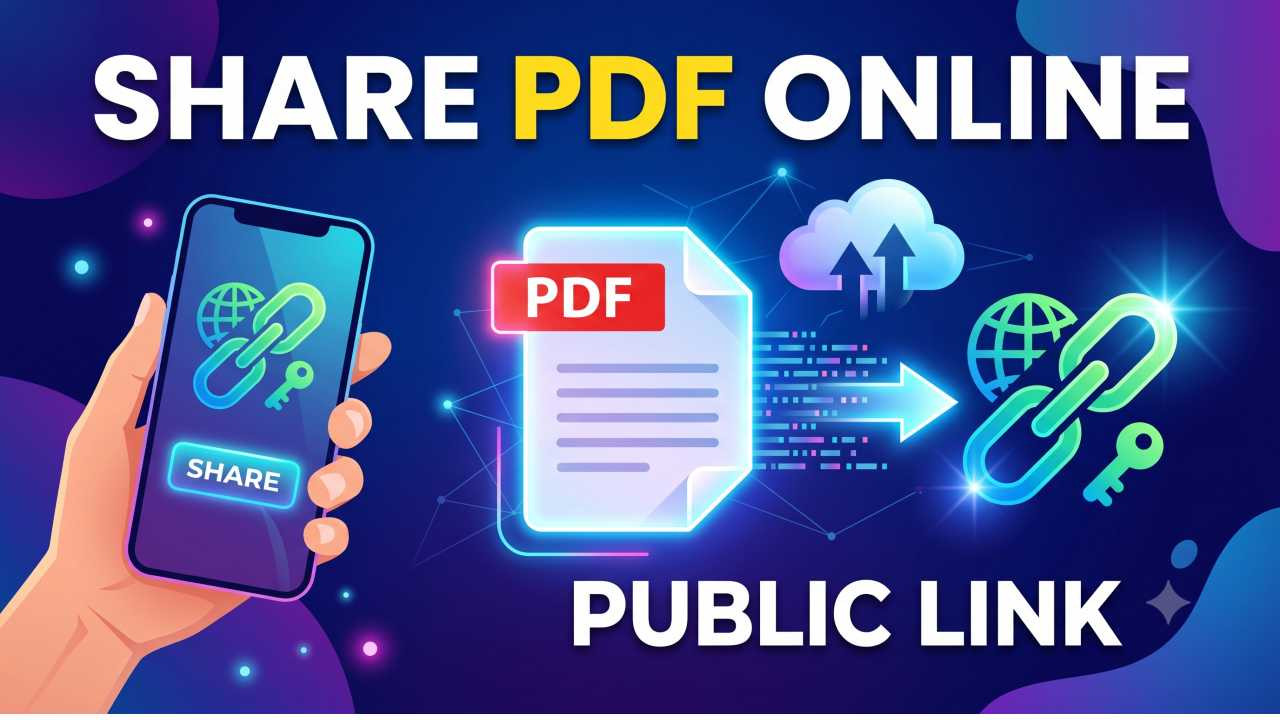
How to Share PDF Files Online With a Public Link?
Emailing a PDF sounds simple until the file bounces back because it's too large, or the recipient can't open the attachment on their phone.There's a much cleaner way to handle this upload the PDF somewhere online and share a public link that anyone can open in their browser, no download or login required.
Whether you're sharing a resume, a product brochure, a report, or a menu, this guide walks you through exactly how to do it using the most reliable free tools available right now.
Best Ways to Share a PDF Online With a Public Link
Method 1: Google Drive (Free and Fast)
Google Drive is the most straightforward option if you already have a Google account. Here's the exact process:
Go to drive.google.com and click the + New button, then choose File Upload. Select your PDF from your computer and wait for it to upload. Once it's there, right-click the file and select Share. In the sharing window, click Change to anyone with the link and set the permission to Viewer. Hit Copy link and you're done.
Anyone who receives that link can open and read the PDF directly in their browser without signing in to Google. The file stays live as long as it sits in your Drive.
Best for: Quick sharing with colleagues, clients, or anyone who just needs to view a document without downloading it.
Method 2: Dropbox
Dropbox works almost identically to Google Drive for PDF sharing. Upload your file to your Dropbox account, hover over it, click Share, and then select Create link. Copy the link and share it anywhere — email, chat, social media, or a website.
One small advantage Dropbox has over Google Drive is that the shared link opens a cleaner preview page, which feels more professional when you're sending something to a client. The free plan gives you 2GB of storage, which is plenty for PDF files.
Best for: Freelancers or small teams who want a slightly cleaner viewing experience for the person receiving the link.
Method 3: WeTransfer
WeTransfer is the right tool when you just want to send a PDF to someone once and move on — no cloud account needed, no storage to manage. Go to wetransfer.com, drop your PDF into the upload box, switch to the Get a link option instead of entering an email, and click Get a link. Copy it and share it directly.
The link stays active for 7 days on the free plan, then the file is automatically deleted. That's actually useful if you're sharing something time-sensitive and don't want it floating around indefinitely.
Best for: One-time sends where you don't want to deal with ongoing cloud storage or account permissions.
Method 4: Flipsnack or Publuu (PDF Hosting Tools)
If you want the PDF to look polished when someone opens it — especially for business documents, portfolios, or digital brochures — dedicated PDF hosting tools like Flipsnack or Publuu are worth using. You upload the PDF, and the platform converts it into an interactive, flipbook-style viewer that loads cleanly on any device.
Both tools generate a public link automatically after upload. You can also disable downloads if you don't want recipients saving the file, or add password protection for sensitive documents. The free plans on both platforms cover basic public link sharing well enough for most use cases.
Best for: Business owners, marketers, and creators who want the PDF to look professional rather than just functional.
Which Method Should You Use?
If you want the easiest option with no extra setup, Google Drive wins. You already have an account, the steps take under two minutes, and the link works for everyone. If the PDF needs to disappear after a week, use WeTransfer instead. For something client-facing that needs to look sharp, go with Flipsnack or Publuu.
Tips Before You Share Your PDF
A few things that save headaches later: keep your file size under 10MB where possible — it loads much faster on mobile. Name the file something clear and descriptive like project-proposal-2026.pdf rather than something like doc_final_v3.pdf. If you're sharing sensitive information, always set the link to view-only and consider adding a password through whichever platform you use.
Also double-check your sharing settings before sending. A common mistake with Google Drive is copying the link before actually changing the access from "Restricted" to "Anyone with the link," which means the recipient hits an access error when they try to open it.
Can Anyone Open the Link Without an Account?
Yes that's the whole point of a public link. When you set Google Drive, Dropbox, or WeTransfer to "Anyone with the link," the recipient doesn't need an account on any platform. They just click the link and the PDF opens directly in their browser. No app, no sign-up, no friction on their end.
That's what makes this approach so much better than emailing attachments. One link, works for everyone, on any device.

Comments (0)
No comments found